Sunday, 28 October 2012


12 Tips To Save Petrol special Nicejattz Post
 |
| 12 Tips To Save Petrol |
We Provide 12 best Tips to save petrol.
Read Also : How to increase bike mileage or Average.
1 ) Pump up your tyres
Keeping your tyres inflated is one of the easiest and most important things. Saving petrol means saving money one can do to improve fuel economy.
If a range is recommended by the manufacturer, the higher pressure should be used to maximize fuel efficiency. Deflated tyres run hot and jeopardize safety. It will also cause the tyres to wear out prematurely, affect the vehicles adversely, and hurt the fuel economy by increasing the rolling resistance.
Tyres lose about 1 psi pressure per month due to air loss caused by the tyre hitting holes, bumps and kerbs. Therefore, the tyres should be checked at least once a month. Just 1 tyre deflated by 2 psi will result in a 1% increase in fuel consumption.
2) Drive at moderate speed
Avoiding high speeds on open roads resultsin safer driving and better fuel economy. In highway driving, over 50% of the power produced by the engine is used to overcome erodynamic drag. Drag and thus fuel consumption increases rapidly at speeds above 90km/h. On the average, a car uses about 15% more fuel at 100km/h, and 25% more fuel at 110km/h compared to when it is doing only 90km/h.
However, this should not lead one to conclude that the lower the speed, the better the fuel economy - because it is not. The fuel consumption of an average car increases sharply at speeds below 50km/h.
3) Clean the air-filter regularly
Clogged air filters increase fuel consumption by restricting airflow to the engine, and thus should be cleaned/replaced when necessary. Clogged air filters can increase fuel consumption by up to 10%.
4) Use thinner tyres
Tyres with thick width will improve the handling of your car. However, it will also increase your car's fuel consumption. Thicker tyres mean more rolling resistance! , and thus will consume more fuel.
5) Start up the car properly
With today's cars, it is not necessary to prime the engine first by pumping the accelerator pedal repeatedly.Do not crank the engine excessively This only wastes fuel.When starting the engine, idle it no more than 30 seconds to warm it up. An engine will warm up faster on the road. However, avoid sudden acceleration before the engine has warmed up sufficiently.
6) Drive in high gear (overdrive)
The engine runs most efficiently between around 1,500 and 2,500 rpm. To maintain these low revs you should change up through the gears as soon as practical and before the revs reach 2500 rpm.
For automatic transmission cars, you should always switch on your overdrive to help save fuel. Overdrive will allow your engine to change gears at lower revs. It also puts your transmission into an "economy" mode and lets it engage the final "overdrive" gear when cruising to ! keep the rpms extra low, thereby increasing fuel economy.
7) Travel light
Avoid carrying any unnecessary weight in your car. On the average, every 50kg added load in your car will increase fuel consumption by 2%.
8) Anticipate traffic ahead
A driver can reduce fuel consumption by up to 10% by anticipating traffic conditions ahead and adjusting the speed accordingly, and avoiding tailgating and thus unnecessary braking and acceleration.
Accelerations and decelerations waste fuel. Braking and abrupt stops can be minimized by not following too closely and slowing down gradually when approaching a red light. It takes up to six times as much fuel to move a car from a dead stop than it does for one moving at just a few km/h.
9) Avoid strong acceleration
The fuel consumption remains at a minimum during steady driving at a moderate speed of about 90km/h. Keep in mind that every time the accelerator is hard pressed, t! he engine goes into a "fuel-enrichment" mode of operation that wastes fuel.The vehicle should always be gradually and smoothly accelerated. Using cruise control on highways can help maintain a constant speed and reduce fuel consumption.
10) Minimise aerodynamic drag
Additional parts on the exterior of a vehicle such as roof racks and spoilers, or having the window open, Roof racks are bad for fuel economy increases air resistance and fuel consumption, in some cases by over 20%.
11) Don't let your engine idle
Minimize fuel wasted in idling by stopping the engine whenever your car is stopped or held up for an extended period of time. Idling more than a minute consumes much more fuel than restarting the engine. By having the engine switched off, you will save more fuel than is lost from the burst of fuel involved in restarting the engine. The net increased wear and tear from this practice is negligible.
12) Use the air-con sparingly
Air conditioners can use about 10 per cent extra fuel when operating. However, at speeds of over 80 km/h, use of air conditioning is better for fuel economy than an open window
Please share us for support us
Saturday, 27 October 2012
Power Up Your Desktop with Pokki

Installation of Pokki
There are lots of basic video demonstrations of the installation process. The installation process is incredibly simple and even the less technical computers will not have any problems installing it quickly and easily. Pokki is an application that can be installed by anyone and used by anyone! Pokki is certainly one of the easier applications when it comes to the installation process.

Pokki in use
The ease of use relating to applications is something that gets a lot of focus. The Future of Web Apps conference is one where people can get to grips with the best and newest web apps and applications. One of the sponsors of the event was Pokki, promoting the launch of their new product, which is likely to be a huge hit with all people that love technical gadgets.
Using the Pokki application is incredibly easy. With step by step instructions related to the installation and general use of the application, it’s hard to take a wrong turn. In fact, video sites like YouTube already have some in depth instructional videos for anyone that is having problems.
The main problem that people are finding is that the range of operating systems supported is not particularly extensive. For the moment, the Pokki application will only be installed on PCs using the Windows operating system. Over time, Pokki is looking to release new versions of their application, which will hopefully support operating systems such as the older versions of windows and of course; OSX.

The construction of the Pokki setup is what makes it really easy to use. Using a combination of HTML5, CSS3 and JavaScript, the application can do everything it needs to impress users. That being said, the app also provides enough flexibility so that new developers can be getting involved. Items like FaceBook, Gmail and Twitter are all easy to use using the Pokki application. Of course, there are plenty of other applications that can be run using the Pokki application; it is simply down to personal preference.
Pokki official site is in downlinks or click here
How to Create strong passwords.
A strong password is an important protection to help you have safer online transactions. Here are steps you can take to create a strong password. Some or all might help protect your online transactions:
More strategies for strong passwords
Test your password with a password checker
A password checker evaluates your password's strength automatically. Try secure password checker.
Avoid common password pitfalls
Cyber criminals use sophisticated tools that can rapidly decipher passwords.
Avoid creating passwords that use:
- Length. Make your passwords long with eight or more characters.
- Complexity. Include letters, punctuation, symbols, and numbers. Use the entire keyboard, not just the letters and characters you use or see most often. The greater the variety of characters in your password, the better. However, password hacking software automatically checks for common letter-to-symbol conversions, such as changing "and" to "&" or "to" to "2."
- Variation. To keep strong passwords effective, change them often. Set an automatic reminder for yourself to change your passwords on your email, banking, and credit card websites about every three months.
- Variety. Don't use the same password for everything. Cybercriminals steal passwords on websites that have very little security, and then they use that same password and user name in more secure environments, such as banking websites.
What to do | Example |
|---|---|
Start with a sentence or two. | Complex passwords are safer. |
Remove the spaces between the words in the sentence. | Complexpasswordsaresafer. |
Turn words into shorthand or intentionally misspell a word. | ComplekspasswordsRsafer. |
Add length with numbers. Put numbers that are meaningful to you after the sentence. | ComplekspasswordsRsafer2011. |
More strategies for strong passwords
Test your password with a password checker
A password checker evaluates your password's strength automatically. Try secure password checker.
Avoid common password pitfalls
Cyber criminals use sophisticated tools that can rapidly decipher passwords.
Avoid creating passwords that use:
- Dictionary words in any language.
- Words spelled backwards, common misspellings, and abbreviations.
- Sequences or repeated characters. Examples: 12345678, 222222, abcdefg, or adjacent letters on your keyboard (qwerty).
- Personal information. Your name, birthday, driver's license, passport number, or similar information.
How to change GMAIL password with screenshot ( Tutorial )
 |
| How to change Gmail password |
If you want to change your Gmail password just some steps will show you full information.please share us on social site s and like us on facebook.
www.facebook.com/nicejattz
www.twitter.com/nicejattz
1) Sign in to GMAIL account


3) Click on setting icon and a new link open in this link click on Account and Import link

4) Then a new page opened and now click on Change password link
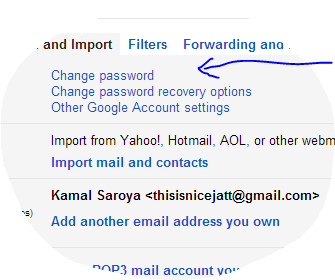
5) In last click on Change Password a new page open and now fill your old password and new password which you want..

Important : Read Things while you set your password
Please Tell your friends and share us
Skype for window 8 review

One of the oddities of Windows 8 apps is that they exist only in the Modern UI. When using a tablet this is less of an issue, as you'll spend most of your time in that environment (the Desktop part of Windows RT devices such as Microsoft Surface RT is a barren wasteland).
But on a desktop or laptop it means you really need to have the desktop version as well as installing the app, or use Skype only in the Modern UI. You're unlikely to do the latter, as it means you can't use Skype and any other desktop apps simultaneously.So in Windows 8 at least Skype - like Firefox - becomes a game of two apps. There's one difference, however. Firefox for Windows 8 is installed as a single app, then works differently in both environments. If you install Skype for Windows 8 and the original Skype you'll have two separate apps: search for 'Skype' and two identical icons will appear. Our advice - if you're using a desktop or laptop PC, mainly in the desktop environment, don't bother with the Windows 8 Skype app. Unless the following is of interest...
The potential killer aspect of this app is the Windows 8 split-screen functionality, and the ability to snap in Windows to a portion of your screen. So with Skype for Windows 8 you can continue a Skype call with the righthand panel of your display, and get on with something else with the rest. (You could, for instance, watch a program on iPlayer whilst chatting about it with a friend, or work collaboratively on a document.)
Using Skype for Windows 8
Importantly, apart from giving the interface a Modern UI facelift, the core video and audio calling functions have been left largely alone. By default video calls take up the full screen. You can select to have text chat on the right, too. In our tests on all devices audio and visual quality was good - exactly as it is on the existing Windows version of Skype.
But that facelift is worth the price of admission for tablet users and Modern UI fans. the new-look Skype is great. The design is typically Windows 8: big square panes of simple tones. Chunky icons are plonked just where you'd expect so that the Skype app is - like much of Windows 8 - comfortable to work with regardless of whether you are using touchscreen, touch pad or mouse. Of course, if you are using mouse and keyboard, you'll probably use the desktop app anyway...
Bespoke Windows 8 touch gestures include dragging down from the top of the screen to see recent conversations, and dragging down and holding in order to move and snap your Skype pane.

Skype for Windows 8: new features, bad points
Windows Messenger is integrated into this Skype app, which is a nice touch. And the app is coded in such a way that if it is running but not actually doing anything, it doesn't take any of your processing power. That's right: zero draw on your CPU. It should be the standard.
There are some minor niggles. The notifications acan be annoying. If you aren't using Skype, getting a message from the app when you are not using it is useful. If you have just finished a conversation you probably don't need to be notified about it all over again - but that's what happens as soon as you leave the app.
Also, presumably in order to prevent power and CPU draw, the app doesn't really run in the background when you are doing other things. Switch back to Skype and the messages pour in. Finally - and this may just be us being stupid (stranger things have happened): but let me know if you can work out how to use two different logins to Skype for Windows 8 without logging out of the OS. You can, of course, have multiple Windows accounts, each with their own Skype logins.

Please share us and like us
Friday, 26 October 2012
Best Google Chrome Extensions For Bloggers

Google Chrome is the property of search giant "Google".Google Chrome is the most popular browser today. This is useful for every user because it has a lot of extensions according to their users interest. You can find extensions as per your taste. Google Chrome extensions are really useful for bloggers.
It has a lot of amazing blogging related extensions.Today, I’m going to share with you some of the best Google Chrome extensions that have made my daily blogging tasks easier.If you don’t yet use Google Chrome, it’s very simple and safe to download. You can do so here:
Top Google Chrome Apps For Bloggers
Blog This
BlogThis! button to the browser toolbar, which allows you post to your Blogger blog from any webpage with single click.You can post anything in your blog easily and quickly. When you click the button Blogger open in a new application window. Edit the post according to your mind and post it instantly to your blog!

SEO For Chrome
SEO For Chrome is a very useful app for all bloggers and webmasters.It allows you to check your website or blog ranking and anything about SEO for your site. Enter your blog or website URL and get information about your site’s SEO will pop out, from your indexed pages in Google, Yahoo and Bing, to your Pagerank and traffic levels.

Screen Capture
Google Chrome has a wonderful free app for all called, Screen Capture. It has thousands of reviews, more than a million users, and an average rating of 4.03 stars. This is one of my favorite extension.You can easily capture anything on webpages with a single click.

You can give a new look to captured image with arrows and colors etc. Screen Capture is available in Windows, Linux and Mac.You can share captured image on your blog or social networking websites. Capture image will save in .PNG format.
Google Dictionary
Some times bloggers can do grammar mistakes.If there is a grammatically incorrect word or sentence in your article then your article is not useful for others or search engines. Google have a solution for this, use "Google Dictionary" extension for this purpose.I afraid from mistakes, So, I use the Google Dictionary extension.
Features Of This Extension:
- Double-click any text to view its meaning.
- View the complete definition of a whole phrase.
.png "Google Dictionary (by Google)")
AddThis
AddThis extension allows you to share your stuff on social networking websites like Facebook, Twitter, Stumbleupon, Delicious, Digg, Blogger etc.You can track your sharing also with the help of this extension. You can share anything simply & quickly and modify this tool according to your choice from the “Options”.It is another useful extension for bloggers.

Bitly - URL Shortener
Bitly allows you to instantly save and share any web page, right from your browser with the bitly Chrome extension.It allows tracking,forwarding and redirecting URLs.You can then easily share the URL on Twitter, Facebook, Del.icio.us, Digg, and LinkedIn etc.

Which Is Your Favorite Google Chrome Extension? Can you share some more extensions and tell us why you use them? I will share more interesting extension with all of you.Keep in touch with us.Keep blogging and God Bless!
Subscribe to:
Posts (Atom)