Showing posts with label Internet Tips and Tricks. Show all posts

Saturday, 22 February 2014

Speedup Youtube Buffering Speed With YouTube DNS Servers

Increase Youtube Buffering Speed With Youtube dns


Hello Friends Welcome to Techlol.com We feel very irritate when we play YouTube video and its start buffering so don't worry in this tutorial I will tell you a easy and simple way to increase the YouTube  video buffering.In part-1 I explain ‘YouTube Feather’ If you don't know about Click here to read that first :  How To Increase Buffering Speed In YouTube Part-1
In This tutorial we will increase YouTube video speed with YouTube DNS So lets start Its also a good way to increase YouTube video speed.


Steps : 
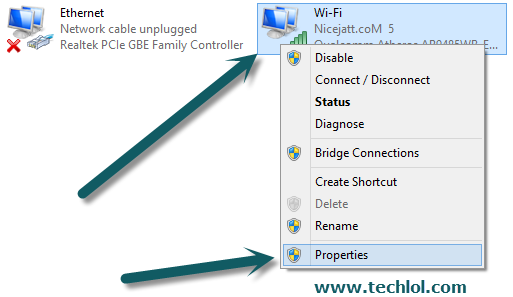
1. First of all open Control Panel > Network and Internet > Network Connection

Increase Youtube Buffering Speed With Youtube dns

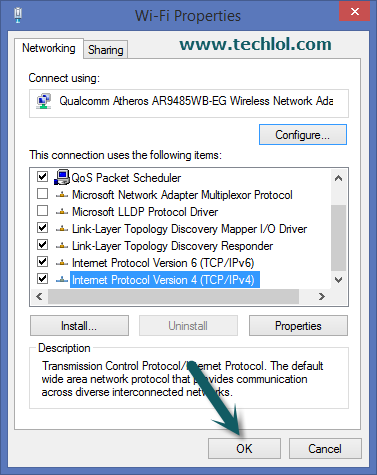
1.       Select the active connection I connect with WiFi Right Click on it and Click on Properties

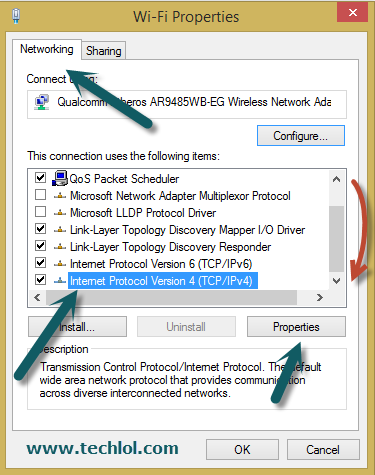
2. Now Scroll down the scroll bar  select  Internet Protocol Version 4(TCP/Ipv4) and click on Properties then a new popup open


Increase Youtube Buffering Speed With Youtube dns
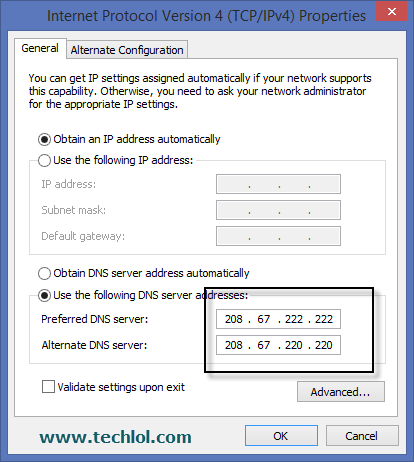
3. Now Select Use The Following DNS and Enter
Click on Use the following DNS server addresses
Set  Preferred DNS server to 208.67.222.222
Alternate DNS server to 208.67.220.220
Increase Youtube Buffering Speed With Youtube dns

then click on ok
 

Increase Youtube Buffering Speed With Youtube dns
 Please like our Facebook page and subscribe our YouTube channel 

How To Increase Buffering Speed In With YouTube Feather


Increase Youtube Buffering Speed With Youtube dns


Hello Friends Welcome to Techlol.com You feel very irritate when we play YouTube video and its start buffering so don't worry in this tutorial i will tell you a easy and simple way to increase the YouTube  video buffering speed.IN this part we will discuss  YouTube's 'Feather' Its the best way to increase YouTube buffering speed using this method You won’t see too many comments. You won’t be able to like or dislike the video. You will get  5 suggested or related videos
Read Also : 

Steps :
1. Open  https://www.youtube.com/feather_betaand click on Join The Feather" beta. 
Increase Youtube Buffering Speed With Youtube dns

2. Now open any YouTube video and you will see the speed is increased  and you will see a new option in your YouTube Which i display in image 
Increase Youtube Buffering Speed With Youtube dns


Just this once : click on this link if you just want to see this video in light version
Permanently : Click on this link if you want this lighter version for YouTube permanently.

3. If You click on permanently and want to leave the ‘Youtube Feather’ again open  https://www.youtube.com/feather_beta
Increase Youtube Buffering Speed With Youtube dns


And click on Leave the “Feather” Beta
Read also : Speedup Youtube Buffering Speed With YouTube DNS Servers

Wednesday, 17 July 2013

How to use New Gmail email categorization

new_gmail_categorizationHello friend are you know that gmail launch the new style of inbox to sort your email. Google today is introducing a new way to manage your Gmail inbox. This new view of your inbox puts a number of tabs at the top of Gmail’s inbox column. By default, Google shows tabs – and automatically categorizes your messages into them – for your social updates from sites like Google+, Twitter, Facebook or YouTube, promotions from the likes of Google Offers and Groupon, and a kind of catch-all “Updates” tab for your bills, receipts and similar messages.


So I Post the tutorial that how you use new inbox in gmail.
Steps :
1 . Open gmail account and you you new inbox like this.
new gmail inbox
So you find that there are three new tabs on the top Primary,Social,Promotional Now Gmail automatic set you mails according to his categories.you have to click on tabs to see the another category mails.

2. If you want to add new categories so click on + icon
select tab in gmail inbox
So here you see the two another categories Updates and forums After click on that button you get another two tabs.if you don’t want to categories your email just unclick all the tabs and you got your last inbox.


3.. In this image you will see that how to manage your new inbox.There are two arrows in this arrows I drag the mails to the another category so if you want to send you mail to another category you have to drag mails in category tab.
drag mails to category in gmail

Saturday, 13 July 2013

How to forward your mails in Gmail account

how to forward mails in gmail account

How to forward your mails in Gmail account

Hello my Friends Today I share a very interesting method to you. My friend has more than 5 email accounts on email and he always check all account in morning and spent too many time so I search a method for him but I see that maximum persons make more than one email account so I make this tutorial for them who have more than one account. In this method i tell that how you check all you email accounts in one account. In this tutorial you learn very interesting topic so let’s start.
First we are set this email forwarding method in Gmail.


Steps:
1. Open another Gmail account.
2. Click on setting after click on icon show in image.
gmail setting
3. After Click on setting we have to click on “Forwarding and POP/IMAP  link then Add a forwarding addressbutton.            

forward mails
4.After Click on “Add a forwarding address” a new popup open here we have to fill our main email where we want our mails come and click on NEXT button
add a forwarding address

Read Also : How to change your gmail password

5. Then a new pop up open here we have to click on PROCEED. 

confirm gmail address
6. 
Then A mail will sent on you email which you fill    

check gmail inbox

7.  Thencopy the confirm Code and fill in email which you want to forward and click on verify button.

verify confirm code

8.       So now this is the last step          

·         Keep Gmail’s Copy in the Inbox
·         Mark Gmail’s copy as read.
·         Archive Gmail’s copy
·         Delete Gmail’s copy
how to forward your emails in gmail account


More methods Coming soon

like  How to forward yahoo mails to gmail,how to forward gmail mails to yahoo,how to forward,how to forward hotmail mails to gmail or yahoo or many more methods.

if you have any query post in comment.please share our posts to your social accounts so that another can also enjoy this post and increase knowledge.


Saturday, 3 November 2012

Switch Back To The Old Compose Option In Gmail - Tutorial with Images


Switch-Back-To-The-Old-Compose-Option-In-Gmail-Tutorial-with-Images

                             
Gmail team has Introduced a New Popup based Compose Window which is Slightly Different as compared to its previous style. Gmail is the number 1 electronic mail service around the world. Gmail is very popular only because of its simple and clean look. If you now click on compose button you’ll be notified that there’s a new compose feature and asked to opt in.


I liked this new style. but as some who are still liked old Compose Option in Gmail can get back to it. In this tutorial learn how to switch back to the old compose option in Gmail.

How to Switch Back To The Old Compose Option In Gmail


  • Go To www.Gmail.com and Log In
  • Click On The Red "COMPOSE" Button So The New Compose Email Pop-Up Window Opens.
  • Click On The Down Arrow Button (See In Image Below)
Switch-Back-To-The-Old-Compose-Option-In-Gmail-Tutorial-with-Images

Next Click On "Switch Back To Old Compose" (See In Image Below)
Switch-Back-To-The-Old-Compose-Option-In-Gmail-Tutorial-with-Images


Its Done! Welcome Back To "Old Compose"
Switch-Back-To-The-Old-Compose-Option-In-Gmail-Tutorial-with-Images


Friday, 2 November 2012

How to Register Domain name free tutorial with images

Hello Friends now i am telling you how we get a free domain name.Domain is the identity of a person on world wide web.there is some simple step to get free domain name for you.
First of all open Dot.tk website
Step 1 : Enter your domain name which you want to set.

Step 2 : Then on next page fill all information set Registration length to 12 month .

Step 3 : Then click on sign up button and register yourself.
If you not understand about this and want some more comment i will give you all help and like our post.


Saturday, 27 October 2012

How to change GMAIL password with screenshot ( Tutorial )

How to change Gmail password tutorial
How to change Gmail password
Hello friends today i tell you how we change the password of our Gmail account tutorial with snapshots.this is too easy to change the password of Gmail our blog always give you easy tutorial and security tips .
If you want to change your Gmail password just some steps will show you full information.please share us on social site s and like us on facebook.
www.facebook.com/nicejattz
www.twitter.com/nicejattz


1) Sign in to GMAIL account
How to change Gmail password tutorial

2) After sign in Click on setting icon which shows in image.
How to change Gmail password tutorial
3) Click on setting icon and a new link open in this link click on Account and Import link
How to change Gmail password tutorial
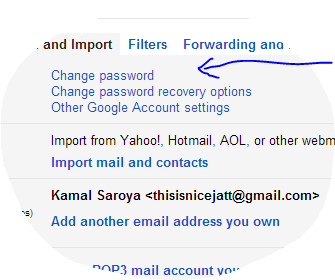
4) Then a new page opened and now click on Change password link
5) In last click on Change Password a new page open and now fill your old password and new password which you want..

How to change Gmail password tutorial
Important : Read Things while you set your password

Please Tell your friends and share us 

Skype for window 8 review

Skype for window 8 review
Skype is owned by Microsoft, so it was no surprise that the all-important Skype app made it on the Windows Store in time for the launch of Windows 8. Only just, however. We gave the Skype app for Windows 8 a spin on both a Samsung Series 7 Slate and our primary desktop PC, both running Windows 8 Pro. 

One of the oddities of Windows 8 apps is that they exist only in the Modern UI. When using a tablet this is less of an issue, as you'll spend most of your time in that environment (the Desktop part of Windows RT devices such as Microsoft Surface RT is a barren wasteland).
But on a desktop or laptop it means you really need to have the desktop version as well as installing the app, or use Skype only in the Modern UI. You're unlikely to do the latter, as it means you can't use Skype and any other desktop apps simultaneously.
So in Windows 8 at least Skype - like Firefox - becomes a game of two apps. There's one difference, however. Firefox for Windows 8 is installed as a single app, then works differently in both environments. If you install Skype for Windows 8 and the original Skype you'll have two separate apps: search for 'Skype' and two identical icons will appear. Our advice - if you're using a desktop or laptop PC, mainly in the desktop environment, don't bother with the Windows 8 Skype app. Unless the following is of interest...
The potential killer aspect of this app is the Windows 8 split-screen functionality, and the ability to snap in Windows to a portion of your screen. So with Skype for Windows 8 you can continue a Skype call with the righthand panel of your display, and get on with something else with the rest. (You could, for instance, watch a program on iPlayer whilst chatting about it with a friend, or work collaboratively on a document.)

Using Skype for Windows 8

Importantly, apart from giving the interface a Modern UI facelift, the core video and audio calling functions have been left largely alone. By default video calls take up the full screen. You can select to have text chat on the right, too. In our tests on all devices audio and visual quality was good - exactly as it is on the existing Windows version of Skype.
But that facelift is worth the price of admission for tablet users and Modern UI fans. the new-look Skype is great. The design is typically Windows 8: big square panes of simple tones. Chunky icons are plonked just where you'd expect so that the Skype app is - like much of Windows 8 - comfortable to work with regardless of whether you are using touchscreen, touch pad or mouse. Of course, if you are using mouse and keyboard, you'll probably use the desktop app anyway...
Bespoke Windows 8 touch gestures include dragging down from the top of the screen to see recent conversations, and dragging down and holding in order to move and snap your Skype pane.
Skype for Windows 8

Skype for Windows 8: new features, bad points

Windows Messenger is integrated into this Skype app, which is a nice touch. And the app is coded in such a way that if it is running but not actually doing anything, it doesn't take any of your processing power. That's right: zero draw on your CPU. It should be the standard.
There are some minor niggles. The notifications acan be annoying. If you aren't using Skype, getting a message from the app when you are not using it is useful. If you have just finished a conversation you probably don't need to be notified about it all over again - but that's what happens as soon as you leave the app.
Also, presumably in order to prevent power and CPU draw, the app doesn't really run in the background when you are doing other things. Switch back to Skype and the messages pour in. Finally - and this may just be us being stupid (stranger things have happened): but let me know if you can work out how to use two different logins to Skype for Windows 8 without logging out of the OS. You can, of course, have multiple Windows accounts, each with their own Skype logins.
Skype for Windows 8

Please share us and like us 

Thursday, 30 August 2012

Get Gmail Alerts On Your Mobile Phone Free TUTORIAL


Hello Friends ..
Today, I am sharing the useful trick "How To Get Email Alerts on Mobile Phone". Some times we traveling or away from the internet, does the thought of missing any important mail bothers you? Well, one way could be to get a high-end mobile handset, subscribe to GPRS and then configure an email client on your handset for getting emails updates.
What if, you get an option to get alerts of your important incoming emails on your cellphone through SMS? You could try the new tool from way2sms.com that helps you achieve the same.


Easy Steps For Get  Email Alerts On Your Mobile Phone
1. Login to way2sms.com or make a new acount if you don't have way2sms account.
2. Register your mobile number first
3. Verify your mobile number by entering the unique ID you will receive on your mobile through SMS
4. After login in just click on Mail Alerts.

5.There just copy your way2sms id, for example - 4010347@waytosms.com.

6.Now just log in to your gmail account and go to Mail settings.

7.In Mail Settings go to forwarding and pop\imap.

8.After that click on Add forwarding address.

9.In the text field paste your way2sms id.
10.Then click on next button.

11.A verification code will send to your way2sms id or to Phone.Enter the confirmation code in Gmail Forwarding and POP/IMAP.

11.You can also stop receiving the mails alerts at any time by going to forwarding and pop/imap tab and select disable forwarding.

Take some time to say thanks and comment on our posts

Friday, 24 August 2012

How to Download YouTube Videos specially Nicejattz Post


Hello Friends Today i tell you how to download YouTube videos.
The digital age is a dream come true for hoarders and collectors. No matter how much digital data or information you amass, it won’t take up a lot of space. This means you don’t have to control your primal instinct to search and collect, you can give rein to it.


So If you want to download YouTube videos just

  1. Go to url : www.fetchvideo.com
  2. Enter the video url .
  3. Then click on Download by URL.
  4. Select a Video which you want to download
Videos Types which you downloaded from this site
  1. Save as Medium Quality - 176x144 3GP
  2. Save as High Quality - 320x240 3GP
  3. Save as Low Quality - 400x226 FLV
  4. Save as Medium Quality - 640x360 FLV
  5. Save as High Quality - 854x480 FLV
  6. Save as Low Quality - 640x360 WEBM
  7. Save as Medium Quality - 854x480 WEBM
  8. Save as Medium Quality - 480x360 MP4

Download audio (choose format)
  1. Medium Quality - Audio MP3
  2. Medium Quality - Audio AAC
  3. High Quality - Audio AAC


Top 10 Youtube Tricks


Youtube – You know that site with videos and all. Yeah! It turns out that its quite popular and you happen to visit and use it quite often. Instead of just searching and playing here are some top Youtube URL tricks that you should know about:


1. View high quality videos
Youtube gives you the option to switch to high quality videos for some of the videos, however you can check if a video is available in high quality format by appending ‘&fmt=18′(stereo, 480 x 270 resolution) or ‘&fmt=22′(stereo, 1280 x 720 resolution) for even higher quality.

2. Embed Higher Quality Videos
While the above trick works for playback, if however you want to embed hig quality videos you need to append “&ap=%2526fmt%3D18″ and “&ap=%2526fmt%3D22″ to the embed url.

3. Cut the chase and link to the interesting part
Linking to a video where the real action starts at 3 minutes 22 seconds, wondered if you could make it start at 03:22? You are in luck. All you have to do is add #t=03m22s (#t=XXmYYs for XX mins and YY seconds) to the end of the URL.
4. Hide the search box

The search box appears when you hover over an embedded video. To hide the search box add ‘&showsearch=0′ to the embed url.

5. Embed only a part of Video
Just append ‘&start=30′ to skip first 30s of the video. In general you can modify the value after start= to the number of seconds you want to skip the video for.

6. Autoplay an embedded video
Normally when you embed a Youtube video and load the page, the player is loaded and it sits there waiting for you to hit the play button. You can make the video play automatically by adding ‘&autoplay=1′ to the url part of the embed code.

7. Loop an embedded video
Append ‘&loop=1′ to make the video start again without user intervention after it reaches the end.

8. Disable Related Videos
Publishing your content in the form of Youtube video? Don’t want people to see other people’s content that may be related but may as well be in competition to you? Just add ‘&rel=0′ to the end of the url part of the embed code and you just turned off the related video suggestions!

9. Bypass Youtube Regional Filtering
Some videos are only available in certain parts of the world. Your IP Address is used to determine your location and then allow or deny access to the video. Change the url from http://www.youtube.com/watch?v=<somecode> to http://www.youtube.com/v/<somecode>

10. Download Video
Although not inherently a youtube trick but useful all the same for downloading videos. Just change youtube to kickyoutube in the url of the video and it will take you to kickyoutube.com with all the options for downloading the video you were watching.


Tuesday, 21 August 2012

12 Best Tips To Search Google

Hello friends Now i tell you what is best tips to search on Google
After reading this post you are able to search fast on Google
If you like this post share us and follow us on social sites or subscribe us


1. Explicit Phrase:

Lets say you are looking for content about internet marketing.  Instead of just typing internet marketing into
the Google search box, you will likely be better off searching explicitly for the phrase.  To do this, simply enclose the search phrase within double quotes.
Example: "internet marketing"

2. Exclude Words:

Lets say you want to search for content about internet marketing, but you want to exclude any results that contain the term advertising.  To do this, simply use the "-" sign in front of the word you want to exclude.
Example Search: internet marketing -advertising

3. Site Specific Search:

Often, you want to search a specific website for content that matches a certain phrase.  Even if the site doesn’t support a built-in search feature, you can use Google to search the site for your term. Simply use the "site:somesite.com" modifier.
Example: "internet marketing" site:www.smallbusinesshub.com

4. Similar Words and Synonyms:

Let’s say you want to include a word in your search, but want to include results that contain similar words or synonyms.  To do this, use the "~" in front of the word.
Example: "internet marketing" ~professional

5. Specific Document Types:

If you’re looking to find results that are of a specific type, you can use the modifier "filetype:".  For example, you might want to find only PowerPoint presentations related to internet marketing.
Example: "internet marketing" filetype:ppt
6. This OR That:

By default, when you do a search, Google will include all the terms specified in the search.  If you are looking for any one of one or more terms to match, then you can use the OR operator.  (Note: The OR has to be capitalized).
Example: internet marketing OR advertising

7. Phone Listing:

Let’s say someone calls you on your mobile number and you don’t know who it is.  If all you have is a phone number, you can look it up on Google using the phonebook feature.
Example: phonebook:0175-223-0025 (note: the provided number does not work – you’ll have to use a real number to get any results).

8. Area Code Lookup:

If all you need to do is to look-up the area code for a phone number, just enter the 3-digit area code and Google will tell you where it’s from.
Example: 617

9. Numeric Ranges:

This is a rarely used, but highly useful tip.  Let’s say you want to find results that contain any of a range of numbers.  You can do this by using the X..Y modifier (in case this is hard to read, what’s between the X and Y are two periods.)  This type of search is useful for years (as shown below), prices, or anywhere where you want to provide a series of numbers.
Example: president 1940..1950

10. Stock (Ticker Symbol):

Just enter a valid ticker symbol as your search term and Google will give you the current financials and a quick thumb-nail chart for the stock.
Example: GOOG

11.Calculator:

The next time you need to do a quick calculation, instead of bringing up the Calculator applet, you can just type your expression in to Google.
Example: 48512 * 1.02

12. Word Definitions:

If you need to quickly look up the definition of a word or phrase, simply use the "define:" command.
Example: define:plethora

Sunday, 19 August 2012

How to post a Free Ad for sale your old product ( Tutorial with images )

Hello friends now i tell you the tutorial about how to post a free add on b2b means business to business sites

1. Search on google  ( Post a ad for free )


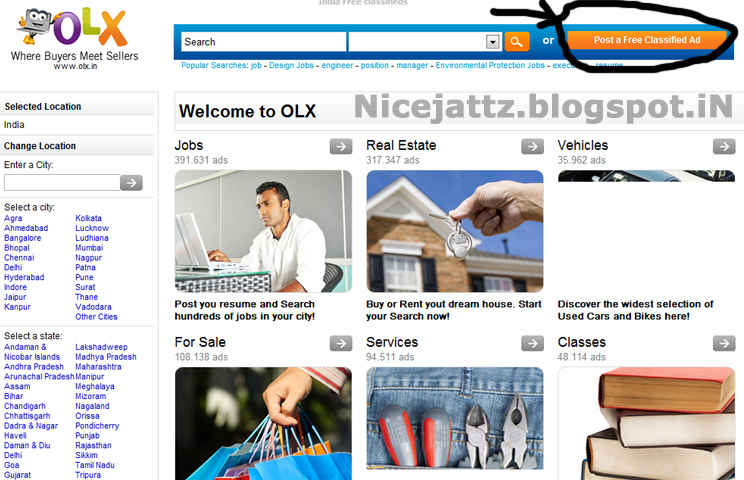
2. Click on any link  ( I click on first link olx.in)

3.Then open the site


4.  Click on Post a free classified Ad and a new page open


5. Choose the category  where you want to post the Ad

6. Fill the full information and click on post you have done it

Recomandations
  1. Fill the full information
  2. fill the correct information
  3. Use correct email and phone number

Take some time to comment on this post
and like us on social sites