Showing posts with label Window 8. Show all posts

Wednesday, 2 April 2014

How To Show Hidden Files And Folders In windows8


Show Hidden Files And Folders In windows8

In This Tutorial You learn How to show hidden files and folders temporary or permanently.
Some of the folder and files in windows are hidden so if we want to show them this tutorial helps you.


Steps :
First Open The folder Where Hidden Files and Folders On the left top you see a view button click on that then you see The hidden item box click on that and you hidden files and folders visible temporary.
Show Hidden Files And Folders In windows8
Now if you want show this folders permanently follow this steps
Select The Files or folder and right click Then click on properties
Show Hidden Files And Folders In windows8
Unchecked The Hidden and Click on OK button

Show Hidden Files And Folders In windows8
Then A pop up open simple click on OK again And you files will be now visible permanently
Show Hidden Files And Folders In windows8
Thanks please comment and share the tutorial

How To Hide Files And Folders in Windows 8 and 8.1


Hide Files And Folders in Windows 8
In this tutorial You learn How to hide files and folders in windows 8 and windows 8.2.Its just 2 steps to do this.


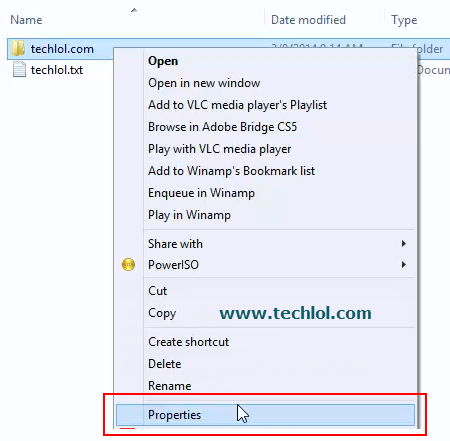
First of all open right click on the folder or file which you want to hide

Hide Files And Folders in Windows 8
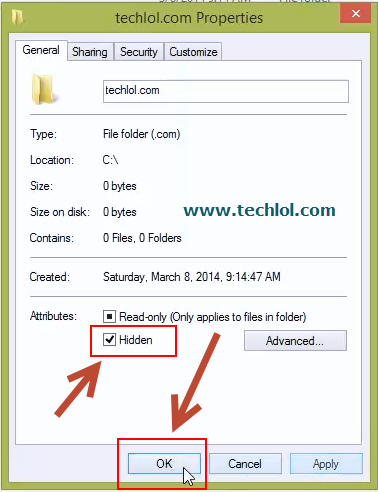
Then select the hidden option and press okey its done


Hide Files And Folders in Windows 8

Video tutorial

Saturday, 8 March 2014

How to create folder without name in windows

create folder without name in windows
Hello Friends Today I post a very cool trick to impress your friends This trick will allow you to make folder without any name. This trick works on any windows  operating system.


Steps to create a folder without name.
Step 1 :   Open the Folder where you want to make this and right click on blank screen               Right Click » New »Folder
create folder without name in windows

Step 2 : Then again Right click on folder » rename

create folder without name in windows step 2

Step 3 : Then type » Alt+255
create folder without name in windows step 3

Step 4 : And You will see your folder like image Press enter to make your folder without name


create folder without name in windows step 4
How to create folder without name in windows Video

Wednesday, 30 October 2013

How to type the dollar sign for Nokia Lumia

 Hello friends The Lumia series is a line of smartphones and tablet computers designed and marketed by Nokia. Introduced in November 2011.
The function of nokia lumia is so nice but there are some hidden functions in the nokia lumia like : the $ sign is hidden in nokia lumia,After read this post its easy to use dollar sign in nokia lumia for you,


Step 1. When you type a text in text box you see a keyword on the bottom click on 123 
dollar sign for Nokia Lumia
Step 2 . After click on 123 you see Your currance sign I am in INDIA So here is rupee sign press this for a while and you see that some more currency signs click on the sign which you want and you see the $ sign is in your type box
dollar sign for Nokia Lumia
Thanks to read this post Please share my website name and like us on blog for daily updations

Monday, 21 October 2013

Change windows update setting and speed up internet

Change windows update setting and speed up internet
How to change the windows update setting in your computer/laptop?

Hello friends, As you all would be aware of the fact that windows update is important for our windows, but it uses a large  part of our internet’s data.So, today I will tell you how to change the settings of your windows, which in turn will help you save a lot of your internet data.
You just have to do some steps to do this thing.
Steps : 
First of all you have to open your control panel if not found press window + r  and type control in input box press enter.After open the control panel 
Set Large icon  so its easy to find windows update setting
windows update setting
Now You have to click on change setting in the left side of your screen
windows update setting
Here we have 3 option
  1. Install updates automatically
  2. Download updates but let me choose whether to install them
  3. Check for updates But let me choose whether to download and install them
  4. Never check for updates

Now you have to check 4th option never check for updates and Also uncheck the recommended updates option.
windows update setting
When you select the option don't forgot to click on OK button on the right bottom side on the screen.
save windows update setting
This post is just for those who have slow internet connection or limited access plan if you have unlimted plan or high speed internet please update you windows automatically so that you can enjoy the new fetures.
Thanks.....
Don't forgot to Like our Facebook page

Sunday, 28 April 2013

Make Wifi Hotspot in window 8 or 7 with CMD


Hello Friends Today i post That how to make wifi hotspot in windows 8 and windows 7 with commands So you can easily make this.In windows 8 we are not able to make a wifi hotspot without commands.
What is Hotspot?
A hotspot is a site that offers Internet access over a wireless local area network (WLAN) through the use of a router connected to a link to an Internet service provider. Hotspots typically use Wi-Fi technology.
So Now we start the tutorial ok.
Read Also : How To Invite all Friends To Facebook Page Code 2014

How To Increase Buffering Speed In With YouTube Feather

Steps :
1. Open cmd  with Run as administrator access
Make Wi-Fi Hotspot in window 8 or 7 with CMD
 2. Paste the Following commands
             1. netsh wlan show drivers ( this option is show you drivers detail if you ignore this don’t worry this is not much important)
Make Wi-Fi Hotspot in window 8 or 7 with CMD


2. netsh wlan set hostednetwork mode=allow ssid=mynetwork key=mypassword
3. netsh wlan start hostednetwork
wifi hotspot cmd

3. Now its time to open Network and Sharing center
                Path : Control Panel > Network and Internet > Network and Sharing Center
Make Wi-Fi Hotspot in window 8 or 7 with CMD
Now click on first Connection which connected with another internet connection its LAN or a Wi-Fi
A dialog box open like the next image.

Make Wi-Fi Hotspot in window 8 or 7 with CMD


Now click on Properties.A new pop up window is open now click on Sharing  > tick on Allow other network users to connect through this computer’s Internet Connection and then click on OK it allow you internet to share with the Wi-Fi hotspot which you create and its done.
Make Wi-Fi Hotspot in window 8 or 7 with CMD


Now enjoy and connect with your mobile lappi and etc.
--------------
Some other things
 Don’t use CAPITAL LETTERS in ssid.
 Don’t delete connection in network and sharing center


If you want to remove this network again open cmd with Run as administrator and type this commands
netsh wlan set hostednetwork mode=allow ssid=mynetwork
 netsh wlan stop hostednetwork
Make Wi-Fi Hotspot in window 8 or 7 with CMD


Please share our post and tell about site.


Tuesday, 30 October 2012

Google Search Windows 8 app


Google Search Windows 8 app
The world’s information at your fingertips. A familiar, fast, and precise way to find answers on your Windows 8 device.
Features
Google Searchbox - Type your search right from the app home screen, so you can find the answers you need more quickly.
Google Search Windows 8 app

Voice Search - Use your microphone to ask Google anything and see the answer instantly.
Image Search - Watch images load into a beautiful full-screen grid. Select images you like or swipe through to see more results.
Search Charm - By installing the Google Search app, you can easily access Google from the Search Charm.
Instant Previews mode - Browse search results without having to visit each page.
View Your Searches - Swipe from the top to see the sites you visited most recently, categorized by keyword.
Google Apps page - Access all your favorite Google products from within the app with just the tap of an icon.
Google Instant - No need to press Enter - see results instantly as you type.
Read More : 

Please Like post and comment and share 

Monday, 29 October 2012

Buy a Windows 7 PC and get Windows 8 Pro for INR 699.00

1.Buy a qualified Windows 7 PC today

2.Register for the offer
3.Redeem your upgrade


Buy a Windows 7 PC and get Windows 8 Pro for INR 699.00.

Price displayed is an estimated retail price. The actual price of the offer will vary by region since it is dependent on a variety of specific factors including exchange rate, local taxes, duties, fees, local market conditions and other pricing considerations, and may vary by each independent reseller. The actual price may be more than the advertised price, due to these additional factors.

Eligibility Details
The offer is for customers (e.g. home users, students, and enthusiasts) who purchase a qualified PC. A qualified PC is a new PC purchased during the promotional period with a valid Windows 7 OEM Certificate of Authenticity and product key for, and preinstalled with:

Windows 7 Home Basic;
Windows 7 Home Premium;
Windows 7 Professional; or
Windows 7 Ultimate.

Windows 8 System Requirements
If you want to run Windows 8 on your PC, here's what it takes:

Processor: 1 gigahertz (GHz) or faster with support for PAE, NX, and SSE2
RAM: 1 gigabyte (GB) (32-bit) or 2 GB (64-bit)
Hard disk space: 16 GB (32-bit) or 20 GB (64-bit)
Graphics card: Microsoft DirectX 9 graphics device with WDDM driver

Buy @ rs.699 : Click Here

Installing Windows 8 From USB Drive 3 Software with links

Hello Friend Nicejattz are now tell you how to install window 8 with a USB.Window 8 is a newest operating system and its very good featyres,so now I'm going to list below 3 easy options for you to put the ISO image of your Windows 8 copy onto a USB stick, then install Windows 8 to your computer from your USB stick instead of burning a DVD and wasting a disc. Installing from a USB drive shaves a few minutes or so off the install time. 


IMPORTANT NOTES: 


  • Make sure your motherboard is capable of booting off a USB stick or this will not work 
  • Backup any files on your USB stick because it will be formatted 
  • Make sure your USB stick is big enough to fit the Windows 8 ISO image 
  • If you are having trouble booting off your USB stick, make sure it is the first item listed in your boot order located in your BIOS settings


Also, this is important so remember this, after you boot from your USB key and it copies the Windows 8 files over and installs them, it will restart your computer to finish the setup. Make sure you unplug your USB key from your computer on the first restart so it doesn't boot off your USB key again and start the installation process over.

First Tool : Microsoft's Official Tool (Try This First) 
Download Microsoft's official tool to install Windows 7 from your USB stick, the tool was removed from Microsoft's website for a short time because evidently the tool violated the GNU’s General Public License (GPL) for using open source code, but Cnet has the file hosted. *UPDATE* Microsoft now has the tool listed on their website again. Links below:


http://download.cnet.com/Windows-7-USB-DVD-Download-Tool/3000-18513_4-10972600.html?tag=mncol;pop

*UPDATE* The tool can now be downloaded again from the MS Store:

http://images2.store.microsoft.com/prod/clustera/framework/w7udt/1.0/en-us/Windows7-USB-DVD-tool.exe


Second Tool : Use Unetbootin

I have found a much easier way to install Windows 8 from a USB Flash drive. Unlike other methods where you have to write complicated commands, this method can be completed even by those who have very little computer background.
The whole process takes only two steps, run UNetbootin, load the Windows 8 ISO file, and finally restart your computer. 
Before you begin, you will require the following:
  • USB Flash Drive (4GB minimum)
  • Windows 8 ISO Image file
  • UNetbootin
Now insert the USB drive, run UNetbootin, and select Disk Image as ISO. Browse your local drive for Windows 8 ISO that you downloaded and click Open. Now Select Type as USB and choose the drive. Once done, it will look like a bit similar to the screenshot shown below.
UNetbootin main windows  7
Click OK and it will begin extracting all installation files to the USB drive. The whole process will take some time(10-15 minutes), so have patience.
unetbootin installing windows 7 iso
Once the installation is complete, reboot your computer. Now while your system is starting up press the appropriate button(usually F1, F2, F12, ESC, Backspace, or Escape) to bring up Bios Boot Menu. Change the startup order to boot USB by default, usually you will have to press F6 to move the selected USB device on top. Once done, save changes and restart the system.
Third Tool : Use UltraISO 
2) Start UltraISO as administrator
3) "Burn" the iso image to the USB stick by following these steps
With UltraISO:
  • Open the image of Win8 with Ultra-ISO
  • Under BOOT-ABLE tab choose WRITE DISK IMAGE
  • Choose your USB stick under "Disk Drive"
  • Choose a method (It's recommended to use USB-HDD+)
  • Press Write
  • Make sure to change your BOOT order in BIOS to boot from your USB drive first
Please Give some comments and Like this post 


Microsoft Releases Windows 8 in India for Rs 699 and Rs 1,999


Windows 8 in India
After a long wait, finally, Microsoft released the Windows 8 OS officially in India in New Delhi on October 25, few hours prior to the launch in the US event. With the launch, Microsoft has entered into a direct competition with Apple and Google and their latest operating systems – iOS 6 and Android 4.1 Jelly Bean.
Commenting at the launch event, Bhaskar Pramanik, Chairman, Microsoft India was quoted stating, “It is deeply personalised, great for keyboards and mouse, and optimised for touch. We have huge number of applications and more are added every day.”

Also, Amrish Goyal, Director, Windows Business Group, Microsoft India said, ”We want to create a desire for the OS and an awareness of the product and how it works. We want to give the end user a good experience and make sure they they feel like they have made a satisfactory purchase.”
Microsoft has joined with 14 hardware manufacturers including Dell, Lenovo, HP, HCL, Acer, Asus and more and they will together on sale 250 devices running on the latest Windows OS. These devices would be available in across 2,500 stores in over 100 cities in India.
Consumers having PCs with Windows XP, Windows Vista or Windows 7, are eligible to download Windows 8 Pro for an estimated retail price of Rs 1,999. However, as claimed by Microsoft, those consumers who have purchased the Windows 7 PCs between June 2, 2012 and January 31, 2013 can download Windows 8 Pro for an estimated retail price of Rs 699 with the Windows Upgrade Offer.
Further, Windows Store is also open, in order to let the users to download a plethora of free and paid applications.
Take a tour across the new features of Windows 8 OS below!
Innovative Tile Base UI
Not all consumers may like the new Start screen but it has some undeniable benefits including interactive tiles.
The tiles-based interface or the Metro UI will be the first thing that will open soon as the users log in to Windows 8. The UI seems to go intuitively with touchscreen devices like tablets and smartphones.
The interactive tile for the Mail application provides snippets from unread messages in your inbox, the Music tile shows which track is currently playing and the Calendar app displays forthcoming appointments in your diary. Also, users can customize the grid to add and re-arrange applications.
Gestures
Windows 8 is the first gestural version as the OS supports intuitive simple touch gestures like swiping in from the left to switch apps, swiping in from the right for the Charms menu and semantic zoom.
While in the Start Screen or a specific app, like the People hub, users can navigate using the pinch-to-zoom gesture to get a high-level view with semantic zoom without the necessity of scrolling.
Other useful gestures include swiping in from the top of the screen for app-specific commands and settings and dragging an app from the top down to close it out.
Read Also : Window 8 Shortcut keys
Faster Boot and Load Time
Windows 8 has faster and better booting and loading speed as compared to the other versions including Windows 7. The main reason for such an improved speed is the presence of a technique of hibernating the system kernel when the device is shut down, hence, it becomes like a partial hibernation each time. This way Windows 8 reboots and loads faster as the memory of the previous session gets reinitialized quicker.
Split touch keyboard
Windows 8 in India

Windows 8 offers two types keyboards – a keyboard that spans the full width of the screen and a split keyboard that makes it easier to thumb-type on larger tablet screens.
Interestingly, the split keyboard can be zoomed to different sizes and it cleverly places the number keys between the two banks of letters, leaving them easily accessible at the sides.
In addition to two soft keyboard options, Windows 8 also offers handwriting recognition, allowing stylus users to write in mails, notes and more.
No Need of Anti-Virus
In Windows 7, Windows Defender provided anti-spyware and anti-malware capabilities, but it lacked anti-virus functionality, a weird chink in the OS’s armor. So users needed to find and download their own anti-virus solution, and while Microsoft made its Security Essentials (MSE) program available for free, it was a silly extra step.
However, this is not the case with the new Windows 8 OS as it comes preloaded with Windows Defender along with anti-virus functionality, hence, consumers can stay away from the expensive anti-virus software.

Sunday, 28 October 2012

Window 8 Shortcut Keys


Window 8 Shortcut Keys
Hello Friends it not too easy to operate window 8 if you are new.Window 8 is the new version of microsoft. If you want to operate window 8 easily this topic will help you we tell you some Win 8 Keyboard Shortcuts which help you to operate with 1-2-3 click easy.so enjoy this topic like us

Read Also : SKYPE FOR WINDOW 8 REVIEW


  1. Windows logo key + start typing: Search your PC
  2. Windows logo key + H: Open the Share charm
  3. Ctrl+plus (+) or Ctrl+minus (-): Zoom in or out
  4. Windows logo key + C: Open the charms
  5. Windows logo key + F: Open the Search charm
  6. Windows logo key + I: Open the Settings charm
  7. Windows logo key + O: Lock the screen orientation
  8. Windows logo key + Z: Open commands for the app
  9. Windows logo key + K: Open the Devices charm
  10. Windows logo key + PgUp: Move the Start screen and apps to the monitor on the right
  11. Windows logo key + PgDn: Move the Start screen and apps to the monitor on the left
  12. Windows logo key + Shift+period (.): Snap an app to the left
  13. Windows logo key + period (.): Snap an app to the right

Windows 8 Pro for a special price $39.99

Window 8 pro special price
Windows 8 is all about you
Put what matters most right on your Start screen. Get instant access to your people, apps, and stuff, so you can spend less time searching and more time doing. Windows 8 is smooth, intuitive, and designed to let you do what you want, the way you want.

Windows 8 Pro gives you everything in Windows 8 plus enhanced features that help you easily connect to company networks, access files on the go, encrypt your data, and more.


Great upgrade, great deal
For a limited time, upgrade to Windows 8 Pro for a special price $39.99.

Windows 8 system requirements
If you want to run Windows 8 on your PC, here's what it takes:

Processor: 1 gigahertz (GHz) or faster with support for PAE, NX, and SSE2 (more info)

RAM: 1 gigabyte (GB) (32-bit) or 2 GB (64-bit)

Hard disk space: 16 GB (32-bit) or 20 GB (64-bit)

Graphics card: Microsoft DirectX 9 graphics device with WDDM driver

Additional requirements to use certain features:
To use touch, you need a tablet or a monitor that supports multitouch (more info)

To access the Windows Store and to download and run apps, you need an active Internet connection and a screen resolution of at least 1024 x 768

To snap apps, you need a screen resolution of at least 1366 x 768

Internet access (ISP fees might apply)

Secure boot requires firmware that supports UEFI v2.3.1 Errata B and has the Microsoft Windows Certification Authority in the UEFI signature database

Some games and programs might require a graphics card compatible with DirectX 10 or higher for optimal performance

Microsoft account required for some features

Watching DVDs requires separate playback software (more info)

Windows Media Center license sold separately (more info)

BitLocker To Go requires a USB flash drive (Windows 8 Pro only)

BitLocker requires either Trusted Platform Module (TPM) 1.2 or a USB flash drive (Windows 8 Pro only)

Client Hyper-V requires a 64-bit system with second level address translation (SLAT) capabilities and additional 2 GB of RAM (Windows 8 Pro only)

A TV tuner is required to play and record live TV in Windows Media Center (Windows 8 Pro Pack and Windows 8 Media Center Pack only)

Free Internet TV content varies by geography, some content might require additional fees (Windows 8 Pro Pack and Windows 8 Media Center Pack only)